Important Notification Settings
Hello Community!
We’ve noticed that some members are not receiving notifications due to notification settings being inadvertently turned off when their accounts were created.
To ensure you're receiving notifications, please check that your settings are turned on. If you're already receiving them and are happy with your settings, no further action is needed.
Here's how to check your notification settings:
1. Click on your avatar (your picture or your initials) in the upper right corner and select "Notifications"
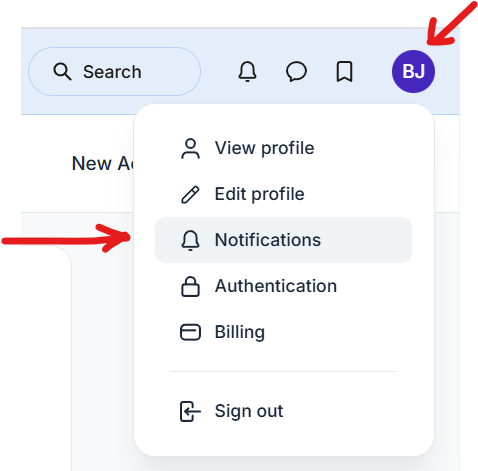
2. In the New activity notifications section, turn on notifications by clicking each box. In the New posts notifications section, you can either enable specific post spaces individually or click the "Apply to all spaces" box to turn them all on.
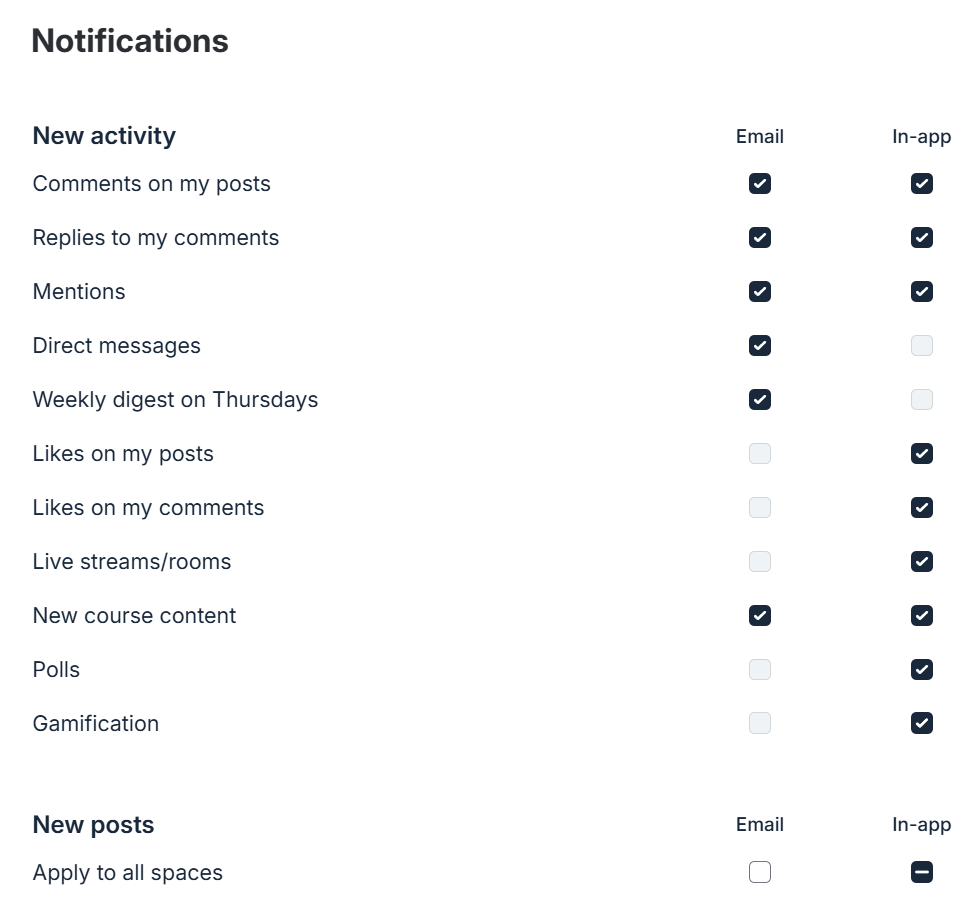
Feel free to enable all notifications initially and adjust them later as you become familiar with how they work. Here’s an example excerpt of the notification settings (your selections may look different):
Notes:
Gray boxes indicate options that are either not applicable or not optional.
The "In-App" column refers to notifications on the website (you can see these via the bell icon in the upper right corner).
If you’re using our smartphone app, a third "Mobile" column will be displayed.
For more information about notifications, you can jump to 1:33 in Video 5 here →
Thank you,
The Pale Blue Dot Community Team